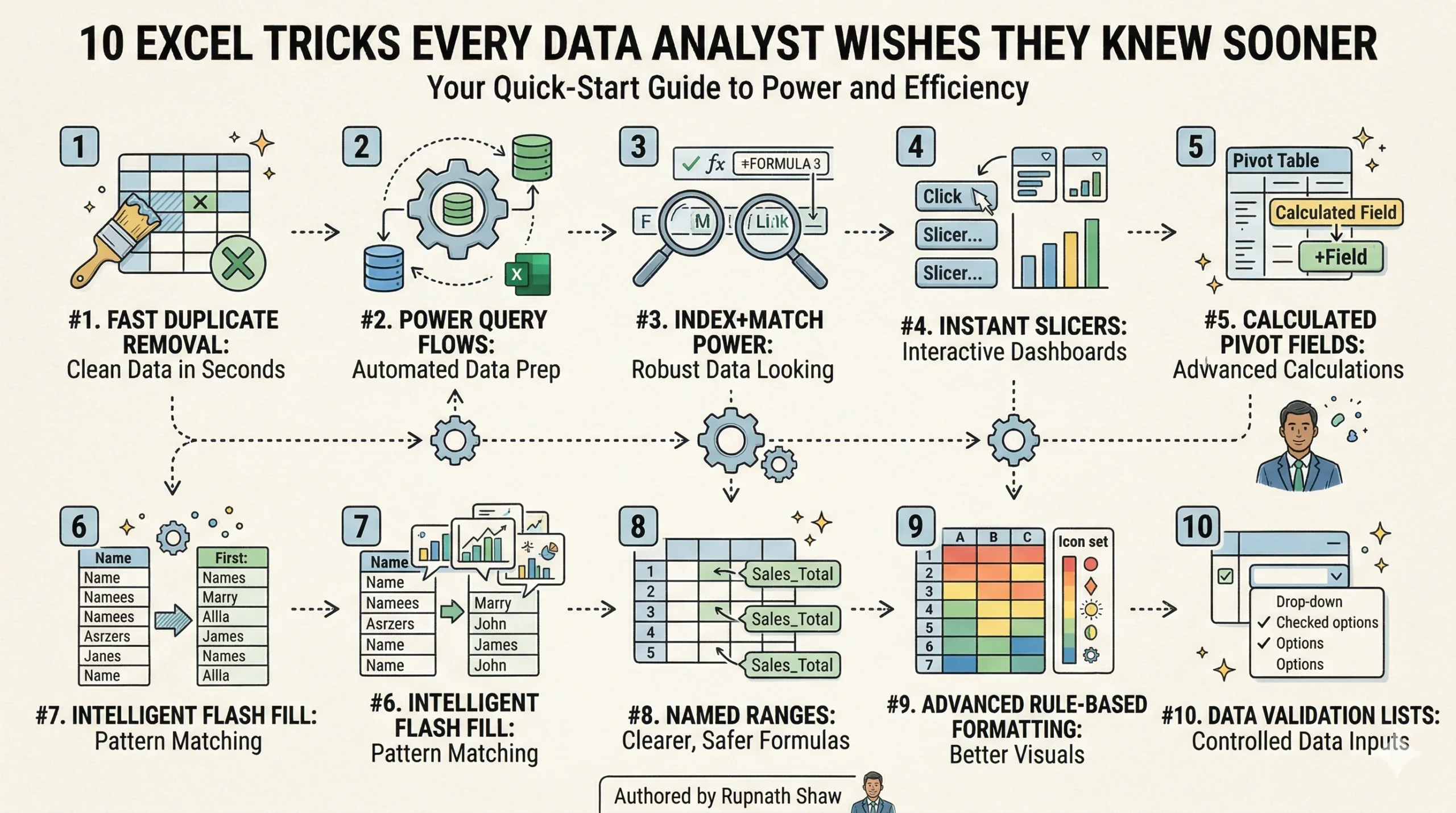
Not the functions everyone learns first. The ones that cut hours off real analytical work with formulas you can copy and use today.
Most Excel tutorials teach you SUM, AVERAGE, VLOOKUP, and pivot tables. Those are important. They are also the ones every analyst learns in their first month.
The tricks in this list are different. Here are the formulas and features that experienced analysts use. You won’t often find them in beginner courses. Each one comes with the real scenario where it matters, the formula itself, and what it replaces. Some will save you minutes. A few will save you hours every week, immediately.
-
XLOOKUP — Replace VLOOKUP and INDEX-MATCH with one cleaner formula
To find a product by its SKU, remember that the lookup column is to the right of the return column. VLOOKUP can’t do this unless you add a helper column. XLOOKUP searches any direction and returns any column, left or right.
=XLOOKUP(lookup_value, lookup_array, return_array, [not_found], [match_mode])
— Example: find price by SKU, SKU is in column C, Price is in column A
=XLOOKUP(E2, C:C, A:A, “Not found”)
— VLOOKUP equivalent (only works left-to-right):
=VLOOKUP(E2, A:C, 1, 0) <– this would not work here
Key uses:
-
Look up any value left or right of the lookup column — no helper columns needed
-
Returns a custom message when no match is found (instead of #N/A)
-
Handles approximate matches, wildcards, and exact matches with a single argument
-
Replaces 95% of VLOOKUP and INDEX-MATCH use cases with cleaner syntax
-
Available in Excel 365, Excel 2021, and Google Sheets
-
SUMIFS and COUNTIFS — Sum or count based on multiple conditions simultaneously
You need to find total sales for a specific region, for a specific product category, in a specific month. SUMIF handles one condition. SUMIFS handles as many as you need, without pivot tables.
=SUMIFS(sum_range, criteria_range1, criteria1, criteria_range2, criteria2, …)
— Total revenue for Region=South AND Category=Electronics in March:
=SUMIFS(D:D, B:B, “South”, C:C, “Electronics”, E:E, “March”)
— Count of orders above Rs.10,000 from active customers:
=COUNTIFS(D:D, “>10000”, F:F, “Active”)
— Dynamic criteria from a cell reference:
=SUMIFS(D:D, B:B, H2, C:C, I2)
Key uses:
-
Multi-condition aggregation without building a pivot table for every question
-
Pairs with dropdown lists in H2, I2 etc. to build interactive summary tables that update instantly
-
Much faster than filtering and manually summing for ad-hoc questions
-
AVERAGEIFS and MAXIFS use the exact same syntax for average and maximum values by condition
-
Power Query (Get & Transform) — Clean, reshape, and combine messy datasets automatically — and refresh in one click
You get a monthly sales export with mixed date formats and category labels in various cases. There are also three regional files that need to be combined. Doing this by hand takes 45 minutes each month. Power Query records each step and can run the whole process in under 10 seconds when the next month’s files arrive.
— Access Power Query:
Data tab → Get Data → From File / From Folder
— Key transforms available in Power Query (no formulas needed):
Remove duplicates
— one click
Trim and clean text
— standardise whitespace and casing
Split column by delimiter
— split ‘FirstName LastName’ into two columns
Merge queries
— equivalent to SQL JOIN on two tables
Unpivot columns
— convert wide pivot format to long format
Append queries
— stack multiple files vertically
— After transforms, click ‘Close & Load’
— Next month: right-click the output table → Refresh
Key uses:
-
Automate repetitive monthly data cleaning without writing formulas or macros
-
Combine multiple files from a folder — add a new file to the folder, refresh, and it is included automatically
-
Unpivot wide Excel reports (months as columns) into long format for pivot tables and charts
-
Join two datasets on a common key — equivalent to VLOOKUP but for full table merges
-
Every cleaning step is recorded and auditable in the Applied Steps pane
-
Dynamic Arrays: FILTER, SORT, UNIQUE — Return filtered lists, sorted tables, and unique values that update automatically when your data changes
To get a list of all transactions from a specific region without a pivot table or manual filtering, follow these steps:
-
Open your data file.
-
Use the search function to find your region.
-
Copy the relevant transactions.
-
Paste them into a new sheet or document.
This way, you have all transactions in one place!
FILTER shows matching rows in a spill range. It updates instantly when your source data changes.
— FILTER: return all rows where Region = ‘South’
=FILTER(A2:E1000, B2:B1000=”South”, “No results”)
— FILTER with multiple conditions (AND logic):
=FILTER(A2:E1000, (B2:B1000=”South”)*(D2:D1000>10000))
— UNIQUE: return a list of distinct category names
=UNIQUE(C2:C1000)
— SORT: return the top 10 rows sorted by revenue descending
=SORT(FILTER(A2:E1000, D2:D1000>0), 4, -1)
— Combined: unique regions sorted alphabetically
=SORT(UNIQUE(B2:B1000))
Key uses:
-
Return filtered subsets of data that update automatically — no pivot table required
-
UNIQUE extracts distinct values from any column instantly — replaces Remove Duplicates + manual copying
-
SORT combined with FILTER creates dynamic sorted filtered views without helper columns
-
These functions spill results into the surrounding cells — no need to select a range first
-
Available in Excel 365 and Excel 2021. Not available in Excel 2019 or earlier.
-
Conditional Aggregation with SUMPRODUCT — Calculate weighted averages, conditional sums on non-contiguous ranges, and complex aggregations in one formula
You need a weighted average price for product categories. Or, you might need a conditional sum that’s too complex for SUMIFS. SUMPRODUCT multiplies arrays and sums the results. This makes it the most flexible aggregation formula in Excel.
— Weighted average price: (units * price) / total units
=SUMPRODUCT(B2:B100, C2:C100) / SUM(B2:B100)
— Conditional sum without SUMIFS (works in older Excel versions too):
=SUMPRODUCT((B2:B100=”South”)*(C2:C100=”Electronics”)*D2:D100)
— Count unique values meeting a condition:
=SUMPRODUCT((B2:B100=”South”)/COUNTIF(A2:A100, A2:A100))
— Average only for rows matching a condition:
=SUMPRODUCT((B2:B100=”South”)*D2:D100)/SUMPRODUCT((B2:B100=”South”)*1)
Key uses:
-
Weighted averages — the correct way to average rates, prices, or percentages across different group sizes
-
Conditional aggregation with AND/OR logic that SUMIFS cannot express
-
Count of distinct values meeting a condition without Power Query
-
Works in all Excel versions — useful when sending files to colleagues on older versions
-
Named Ranges and Structured Table References — Write formulas that say what they mean and do not break when rows are added
You have a formula that reads =SUMIFS(D2:D1000, B2:B1000, H2). When someone adds 500 rows below row 1000, your formula misses them. Convert your data to a Table and use structured references that automatically expand.
— Convert data to a Table: Ctrl+T
— Table name: SalesData (set in Table Design tab)
— Instead of: =SUMIFS(D2:D1000, B2:B1000, “South”)
— Write: =SUMIFS(SalesData[Revenue], SalesData[Region], “South”)
— Adding a row to SalesData automatically includes it in the formula
— Named ranges for single cells (for dashboard inputs):
— Formulas → Define Name → TargetRevenue = Sheet1!$H$2
— Then use: =SUMIFS(SalesData[Revenue], SalesData[Region], TargetRevenue)
— Result: formulas are readable, self-documenting, and never break on data expansion
Key uses:
-
Structured table references expand automatically when new rows are added — no more missed data
-
Named ranges make formulas readable: TargetRevenue instead of Sheet3!$H$2
-
Tables automatically apply conditional formatting and totals row to new data
-
A formula that reads what it means is significantly faster to audit and debug
-
LET Function — Assign names to intermediate calculations inside a formula — like variables in code
Excel lacks a way to store intermediate results. So, you end up calculating the same sub-expression three times. LET lets you calculate a value once, name it, and reuse it throughout the formula.
=LET(name1, value1, name2, value2, …, result)
— Without LET: revenue_share calculated three times
=IF((D2/SUM(D:D))>0.1, (D2/SUM(D:D))*1.2, (D2/SUM(D:D))*0.8)
— With LET: revenue_share calculated once, reused
=LET( revenue_share, D2/SUM(D:D), IF(revenue_share>0.1, revenue_share*1.2, revenue_share*0.8))
— Multiple variables for a margin tier calculation:
=LET(revenue, D2,cost, E2,margin, (revenue-cost)/revenue,IF(margin>0.3, “High”, IF(margin>0.15, “Medium”, “Low”)))
Key uses:
-
Eliminate repeated sub-expressions in complex formulas — calculate once, use everywhere
-
Makes complex formulas readable and debuggable by naming each logical step
-
Speeds up calculations for big datasets. Without this, the same expression could be recalculated thousands of times.
-
Available in Excel 365 and Excel 2021
-
Flash Fill (Ctrl+E) — Extract, combine, or reformat text patterns in seconds without a formula
You have a column of full names like ‘Sharma, Rahul’ and need them as ‘Rahul Sharma’. Or a product code like ‘PROD-SKU-001’ where you need just ‘001’. Flash Fill learns the pattern from one or two examples and fills the rest of the column instantly.
— No formula required. Here is how it works:
— Step 1: In the next column, type the desired output for row 1
— Example: Column A = ‘Sharma, Rahul’ → Type ‘Rahul Sharma’ in B1
— Step 2: Press Ctrl+E (Flash Fill)
— Excel learns the pattern and fills B2:B1000 automatically
— Works for:
— Extracting first name: ‘Rahul Sharma’ → ‘Rahul’
— Formatting phone numbers: ‘9876543210’ → ‘+91 98765 43210’
— Cleaning codes: ‘PROD-SKU-001’ → ‘001’
— Combining columns: First=’Rahul’, Last=’Sharma’ → ‘Rahul Sharma’
Key uses:
-
Reformat or extract text from structured patterns without writing LEFT, MID, RIGHT, or FIND formulas
-
Faster than any formula approach for one-time cleaning tasks on consistent patterns
-
Recognises date reformatting, case changes, delimiter extractions, and concatenation patterns
-
If the pattern is ambiguous, type one more example and Ctrl+E again — it learns from additional examples
-
Camera Tool for Dynamic Dashboard Elements — Take a ‘live photo’ of any cell range that updates automatically when the source changes
You are building a dashboard and want to show a summary table from Sheet2 as a visual element on Sheet1. If you paste it, it is static. The Camera Tool shows a live image of the source range. It updates automatically whenever the source data changes.
— Add Camera Tool to Quick Access Toolbar:
File → Options → Quick Access Toolbar → All Commands → Camera → Add
— Use it:
— Step 1: Select the cell range you want to capture (e.g. summary table)
— Step 2: Click the Camera Tool icon in the Quick Access Toolbar
— Step 3: Click anywhere on the dashboard sheet to place the live image
— Result: a linked picture that updates in real time with the source
— Move it, resize it, add a border — it behaves like a shape
— Source data changes → the camera image updates automatically
Key uses:
-
Show data from various sheets on one dashboard view, no need to link cells.
-
Design pixel-perfect dashboard layouts. You can place data tables and charts anywhere you want.
-
Great for printing layouts that require summary tables to be precisely placed on the page.
-
Prevents linked pictures from misaligning when the source range size changes.
-
IFERROR + Nested Function Error Handling — Prevent #N/A, #DIV/0!, and #VALUE! errors from breaking your reports
Your XLOOKUP returns #N/A for missing products. Your division formula returns #DIV/0! when the denominator is zero. These errors propagate through dependent formulas and make reports look broken. IFERROR wraps any formula and returns a clean value when an error occurs.
=IFERROR(formula, value_if_error)
— Clean #N/A from XLOOKUP:
=IFERROR(XLOOKUP(E2, C:C, A:A), “Not found”)
— Clean #DIV/0! from percentage calculation:
=IFERROR(D2/E2, 0)
— Nested: XLOOKUP inside IFERROR inside IF:
=IFERROR(IF(XLOOKUP(E2,C:C,D:D)>10000,”High”,”Low”), “Unknown”)
— IFNA: catches only #N/A errors (more precise than IFERROR):
=IFNA(XLOOKUP(E2, C:C, A:A), “Product not in catalogue”)
— For division specifically, use the IF approach to avoid 0 misreading:
=IF(E2=0, 0, D2/E2)
Key uses:
-
Prevent errors from propagating through dependent cells and breaking downstream calculations
-
IFNA is more precise than IFERROR — use it when you only want to catch lookup failures
-
Return 0, blank (“”), or a descriptive message depending on what makes sense for the context
-
Wrap any formula that might produce errors in a report that will be shared with stakeholders
Wrapping Up
Ten tricks.
Output: These tools are specific to real analyst work. They are the ones experienced analysts use regularly, not just what’s shown in every tutorial.
-
XLOOKUP: Replaces VLOOKUP and INDEX-MATCH for any lookup direction
-
SUMIFS / COUNTIFS: Multi-condition aggregation without pivot tables
-
Power Query: Automate monthly data cleaning. Run once, refresh forever.
-
FILTER, SORT, UNIQUE: Dynamic filtered views that update automatically
-
SUMPRODUCT: Weighted averages and complex aggregations in one formula
-
Named Ranges + Tables: Formulas that expand automatically and say what they mean
-
LET: Name intermediate calculations inside a formula like variables in code
-
Flash Fill (Ctrl+E): Learn and apply text patterns from a single example
-
Camera Tool: Live pictures of ranges for dashboard layouts that update automatically
-
IFERROR / IFNA: Error-proof any formula before sharing a report
Pick two from this list that are new to you. Use them in your next actual piece of analysis. The time they save makes the case for the rest.
Read Also:
Best Laptop for Cybersecurity Students in 2026
Best 10 Job Portals for Freshers in 2026
5 Best Laptops Under ₹60,000 for Data Analysts in 2026
Job Notification Join us on Telegram: Click here
Job Notification Join us on WhatsApp: Click here